
 Your location:Home → low-voltage electrical apparatus → Counter | timer → Time-controlled switch → TB-10 microcomputer time control switch (optical time control)
 |
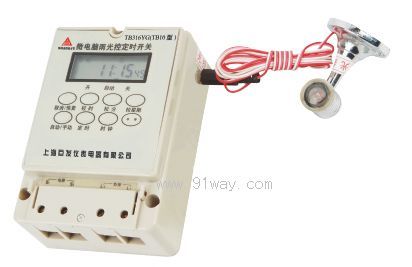
Product name: | TB-10 microcomputer time control switch (optical time control) | |||||
| specification: |   Zoom in on the image Zoom in on the image |
||||||
| Category: | low-voltage electrical apparatus -- Time-controlled switch | ||||||
| |
Price: | factory price | |||||
| Brand: | |||||||
| Place of Origin: | China | ||||||
| |
Available Quantity: | batch | |||||
| delivery cycle: | Spot goods (or inquire by telephone) | ||||||
 |
|
||||||
 Related Products:
 low-voltage circuit breaker low-voltage contactor Low voltage transformer relay Counter | timer
  timer length meter Measuring device Time-controlled switch
  electronic counter Electromagnetic counter mechanical counter Tiring timer street light controller Programmable controller Low-voltage fuse starter electromagnet resistor Low-voltage arrester power capacitor Low voltage reactor dual power switch Low voltage isolator changeover switch Master Electrical Appliance terminal block plug socket electromagnetic chuck Electrotechnical equipment lighting distribution box Low voltage protector Electric cabinet door lock handle Building electrical appliances
 Home|Quality Commitment|Ordering|Payment method|product delivery|support|Disclaimer|Contact Us
Copyright®2011 www.91way.com Copyright.
Phone:+86-21-66770508 +86-13916500500 Fax:+86-21-66108310
Email:91way@163.com Wechat:40606422
沪ICP备2021005791号  沪公网安备31010702003255号

